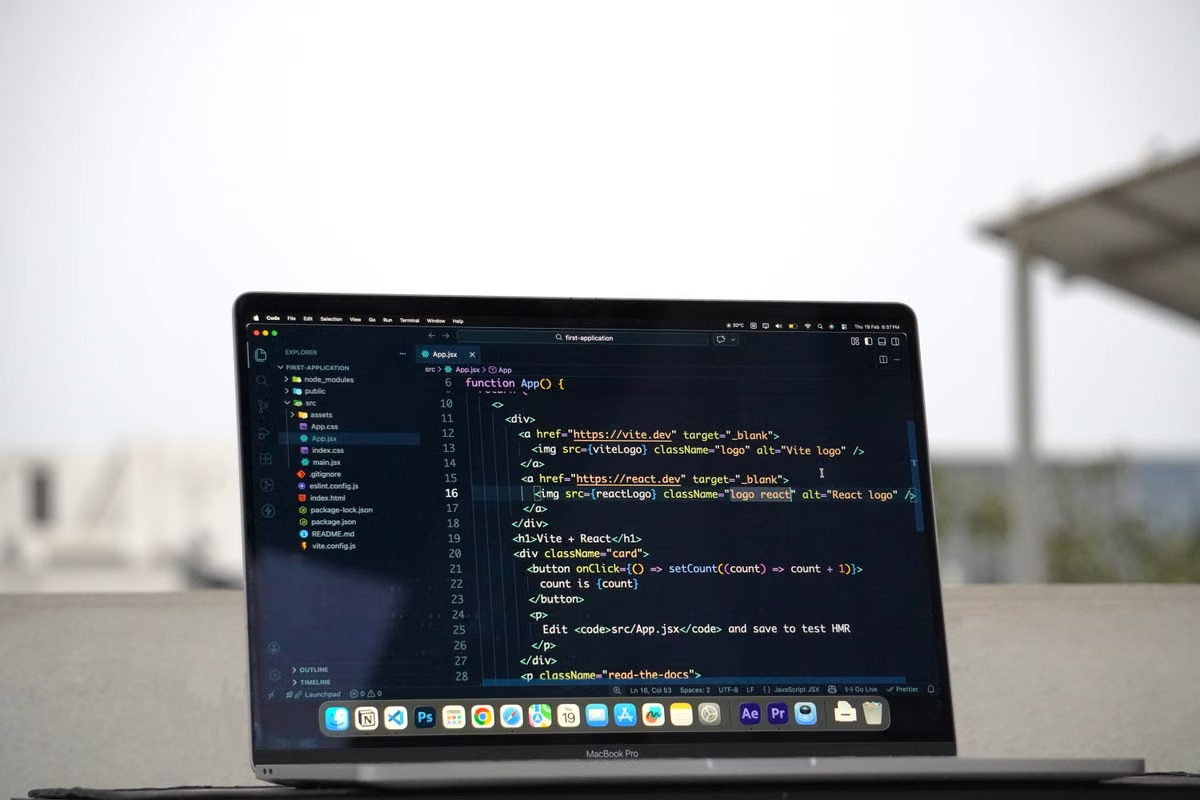
The Xcode 27.2 release-candidate system requirements list Swift 6.4 as the compiler version—not Swift 6.4.1. The Xcode system requirements page identifies the compiler in that RC entry, while the Swift 6.4.1 announcement identifies a separate Swift release.
Symptom: Your course lists Swift 6.4.1, but the Xcode label says 27.2.
Fastest fix: Check whether the course requires a Swift toolchain, a compiler version, or a specific Xcode release. Don’t treat similar-looking version numbers as proof that the tools match.
Who this is for: If you’re learning Swift basics, use this guide to separate the language toolchain from the app used to build projects.
If you’re doing iOS coursework, use it to check the compiler Xcode actually provides.
If you study on Windows and need a Mac for an Xcode assignment, use it to distinguish your practice setup from the environment needed for that work.
Last updated: October 29, 2026. The version details below were checked against the official Swift 6.4.1 announcement, Swift installation guidance, and Xcode system requirements. The Xcode 27.2 information cited here is for a release candidate, not a confirmation of a final release. Check the linked official pages again before you change your setup.
If you’re learning Swift basics, separate the language from the app
Swift is a programming language. A compiler is the tool that translates your Swift code into a form your computer can run. A toolchain is the set of tools used to work with that language, including the compiler. Xcode is an app that provides a development environment for building Apple-platform projects and includes Swift tools.
Think of Swift as the language you write in, the compiler as the translator, and Xcode as a workshop that includes a translator along with tools for creating and testing an app. Their version labels answer different questions. One names a Swift release; the other names an Xcode release. The labels do not have to match.
That distinction matters when a class handout says “use Swift 6.4.1.” The instructor may mean the standalone Swift release, the compiler output expected in class, or simply the language features used in lessons. If the handout instead says “use Xcode 27.2,” it may be asking for a particular development app, not a matching Swift patch number.
The Swift project has published an official Swift 6.4.1 announcement. That fact does not, by itself, establish that a particular Xcode release bundles Swift 6.4.1. For that, check the compiler information associated with the Xcode release and the tools selected on your own Mac.
| What you see | What it identifies | What to check next |
|---|---|---|
| Swift 6.4.1 in a course note | A Swift release or a course-specific compiler requirement | Ask whether a standalone Swift toolchain is required |
| Xcode 27.2 in an Xcode entry | An Xcode release label; the cited page identifies it as an RC | Check the compiler listed for that Xcode and confirm its release status |
| Swift 6.4 in the Xcode 27.2 RC entry | The compiler version shown for that release-candidate entry | Compare it with the instructor’s exact requirement |
| A Swift version in Terminal | The version reported by the tools selected in that environment | Record the command, operating system, and selected tools |
Keep the labels separate: “Swift version” and “Xcode version” are not interchangeable fields in a course checklist. Write them on separate lines when you record your setup.
If your course names Swift 6.4.1, confirm which requirement it means
Start with the wording of the assignment, not the version number you found in a search result. Look for the exact tool name, installation instructions, and any required output from a compiler or build. If a lesson explicitly directs you to install the standalone Swift toolchain, follow the official macOS installation options and check the current instructions for your system.
The release announcement and the installation page answer different questions. The announcement confirms that Swift 6.4.1 has been announced. The installation guide explains available ways to install Swift on macOS. Neither makes Swift 6.4.1 another name for Xcode 27.2, and neither should be used to infer what compiler a particular Xcode build selects.
Use this verification sequence before changing anything:
- Copy the course requirement exactly. Preserve whether it names Swift, a compiler, a toolchain, Xcode, or an operating-system target.
- Check the course page, project README, or instructor notes for a required installation source. Don’t assume the word “Swift” means a standalone installation.
- Identify the environment where you will complete the assignment: a Windows computer for language practice, a Mac with Xcode for an iOS project, or another setup the course explicitly permits.
- On a Mac, check which developer tools are selected with
xcode-select -p. Then runxcrun swift --versionto see the Swift version resolved through those selected tools. The Swift macOS installation guidance is a reference for checking installation options; if you installed a separate toolchain, distinguish it from the one Xcode uses. - Compare the observed compiler output with the course’s requirement. If the course only names Swift 6.4.1 but your Xcode reports Swift 6.4, ask the instructor whether that is acceptable before switching installations.
- Save the result with the project notes. Include the operating system, the tool’s source, the selected development tools, and the compiler output so you can reproduce the check later.
The commands help you inspect the active setup; they do not prove that every project will build or that the instructor accepts the result. A course can set its own acceptance rule. If the handout leaves the requirement unclear, ask a precise question: “Do you require the standalone Swift 6.4.1 toolchain, or an Xcode installation whose compiler reports the required version?”
If you’re building an iOS assignment, check the compiler Xcode lists
The Xcode 27.2 entry cited in this guide is marked RC, short for release candidate: a candidate build being considered for release, not proof that a final release is available. Its system requirements list Swift 6.4 as the compiler version. That is a version-specific fact about the cited RC entry, not a claim that Xcode 27.2 is a final release or that its compiler is Swift 6.4.1.
Use the current Xcode system requirements to check the Xcode entry, its status, and the listed compiler version. If the page changes, rely on the current page rather than an old search snippet or an earlier course discussion. A release-candidate label should stay attached to the information whenever you refer to it.
To inspect the tool selected on your Mac, open Terminal and run:
xcode-select -p
xcrun swift --version
The first command reports the active developer directory. The second reports the Swift version resolved through the selected developer tools. Keep the output together: a compiler number without its selected tool directory can be misleading if you have more than one development setup. If a build log also names a compiler invocation, save that with the course project as supporting evidence.
Here’s a useful classroom example. A student sees “Swift 6.4.1” in a language lesson and “Xcode 27.2” in an installation note. They install or switch tools because they expect the numbers to match, then discover the Xcode entry they checked lists Swift 6.4. The safer response is to establish what the assignment tests. If it requires a Swift language exercise, the instructor may care about language features or compiler behavior. If it requires an iOS app built in Xcode, the relevant check is the compiler used by that Xcode and whether the project builds in the required environment.
Don’t infer that an RC is suitable for a graded project just because its compiler label looks close to the course requirement. First check whether your class explicitly permits a release candidate. If it does not, use the Xcode release and system requirements your instructor identifies, then record the compiler information from that installation.
If you study on Windows and Mac, keep two environment records
Swift can be installed on Windows using the official Windows installation instructions. That gives you a documented path for Swift work on Windows, but it does not make that setup the same environment as Xcode on a Mac. The macOS Swift installation guide documents a separate platform path. Record the two environments independently instead of assuming that a matching version display means identical tools.
Use a small comparison record for each computer:
- Operating system: Write down whether you’re working on Windows or macOS.
- Tool source: Note whether Swift came from the official platform installation instructions, Xcode, or a course-provided setup.
- Selected tools: On a Mac, record the developer directory reported by
xcode-select -p. On Windows, record the installation path and the tool the course tells you to use. - Compiler output: Save the version reported in that environment. Don’t copy the number from one machine into the record for the other.
- Course task: Mark whether the work is a Swift language exercise or an Xcode/iOS project.
This record prevents a common beginner mistake: finishing a Swift exercise in one environment and assuming that proves an Xcode project will build in another. The first task checks the setup you used for that exercise. The second may require Xcode and a compatible Mac environment. A version number alone does not settle that difference.
When you compare machines, compare the whole setup: operating system, tool source, selected tools, and compiler output. A version label by itself is not an environment match.
If a deadline is close, let the assignment decide whether to switch
When a submission is due soon, avoid changing a working setup just to make two labels look alike. First identify what the instructor will actually evaluate. If the assignment asks for a basic Swift program and accepts your current environment, continue with it and keep a note of the compiler output. If it asks you to build or validate an iOS project in Xcode, check the required Xcode and Mac conditions before making the project your only copy.
Treat these as separate decisions:
- Basic Swift practice: Continue with the environment you already have if it can perform the exact exercise and the course permits it. A label mismatch alone is not a reason to reinstall.
- Xcode project work: Confirm the required Xcode release, the compiler it provides, and whether the course expects a build or simulator check. If the course materials do not say, get confirmation before relying on an alternate environment.
- A version-specific assessment: Ask whether the requirement is an exact standalone Swift toolchain, a compiler version, or an Xcode release. Keep the instructor’s answer with your project notes.
If you need to check whether Swift language features are supported, consult the official Swift language documentation alongside the course material. Don’t use a language reference as a substitute for an Xcode system requirement: one explains the language, while the other identifies the development environment and release information.
The aim is not to chase the newest-looking number. It is to submit work produced with tools that meet the course’s stated requirement and can be checked later.
If your course requires Xcode, make the setup reproducible
Save a short environment note with your project. Include the wording of the course requirement, the operating system you used, the installation source, the selected developer directory on a Mac, the compiler output, and whether the instructor confirmed any exception. This makes it easier to explain a version mismatch without relying on memory or an outdated screenshot.
Before updating or changing tools, make sure you can still open the project and repeat the check. If a course specifically requires Xcode and you don’t have access to a Mac, check the available Mac environment against the course’s required Xcode release and system conditions first. Your options may include a school Mac, a borrowed device, or a remote Mac. Each has trade-offs: school equipment may have access rules or limited availability; a borrowed computer may not have the required tools; remote access depends on a workable connection and on the remote machine actually offering the necessary software.
If you’re considering a remote setup, check its current software and access conditions before relying on it for a deadline. The macworker rental plans provide a place to review available rental options, while the remote Mac access guide explains the browser-based access route. Neither a rental listing nor a remote desktop method should replace checking whether the installed Xcode and macOS meet your course requirements.
The comparison is practical: Windows can be a good place to continue Swift basics, but it cannot stand in for a course task that explicitly requires Xcode. Shared school equipment can avoid changing your personal setup, but access may not fit your schedule. A local Mac gives you direct access, but buying one just to verify a course environment may not suit a short-term need. A remote Mac adds network dependence, so check access quality and the available software before committing.
FAQ
Does Xcode 27.2 include Swift 6.4.1?
The Xcode 27.2 RC system-requirements entry cited here lists Swift 6.4 as its compiler version. Swift 6.4.1 is identified separately in the Swift release announcement. Those sources do not make the labels interchangeable. Confirm the current Xcode release status and the compiler shown for the installation you plan to use.
How can you check which Swift compiler Xcode is using?
On a Mac, run xcode-select -p to inspect the active developer directory, then run xcrun swift --version to see the Swift version resolved through those selected tools. Record both outputs. If you have a separate Swift installation, don’t assume that running a different command or opening another terminal session checks the same toolchain Xcode uses.
What if your course says Swift 6.4.1 but Xcode reports Swift 6.4?
First determine whether the course requires the standalone Swift toolchain, a particular Xcode release, or only the language features used in the assignment. If the work must build in Xcode, show the instructor the compiler output and ask whether it meets the requirement. Don’t switch tools or alter a working project until you have that answer.
How should you compare Swift on Windows with Swift in Xcode on a Mac?
Keep a separate record for each machine: operating system, installation source, selected tools, and compiler output. Swift’s official instructions document separate Windows and macOS installation paths, so a matching version display does not prove that the environments are equivalent. If the assignment explicitly requires Xcode, check the Mac setup against the course requirement.
If you only need to practise Swift basics, keep using a working environment that your course accepts; you don’t need to change it just because the version labels look different. If you must complete an Xcode project and lack a Mac, compare school access, borrowing, and remote access against the required software before choosing. A remote Mac from macworker may suit a temporary course need, but confirm the available Xcode and system conditions first; if you need frequent local access or physical connections, another option may fit better.
Frequently asked questions
Does Xcode 27.2 include Swift 6.4.1?
Not according to the Xcode 27.2 release-candidate system requirements cited here: they list Swift 6.4 as the compiler version. Swift 6.4.1 is a separate Swift release announcement, so the similar numbers do not establish that Xcode includes that patch version. Check the current official Xcode page and the actual compiler selected by your installation before deciding.
How can I check which Swift compiler Xcode is using?
Check the developer tools selected on your Mac, then run `xcode-select -p` and `xcrun swift --version` in Terminal. The first command helps identify the selected developer directory; the second reports the Swift version resolved through the active Xcode tools. Compare that output with your course requirement, and confirm the selected Xcode in the project if you have more than one installed.
My course says Swift 6.4.1, but Xcode reports Swift 6.4. What should I do?
Do not change your setup just because the labels differ. Ask whether the course requires the standalone Swift toolchain, a particular Xcode release, or only language features used in assignments. If the submission must build in Xcode, verify the compiler reported by that Xcode and ask the instructor whether Swift 6.4 is accepted before installing or switching tools.
How do I compare Swift on Windows with Swift in Xcode on a Mac?
Record each operating system, installation source, selected tool directory, and compiler output separately. The official Swift installation instructions provide distinct Windows and macOS paths, so matching a displayed version number alone does not prove both machines use the same toolchain or can build the same iOS project. Use the Mac environment for any course task that explicitly requires Xcode.
Further reading
Set Up a Mac for Your Swift Coursework
Rent a dedicated physical Mac from MacWorker to access macOS and Xcode remotely when your course requires a Mac.