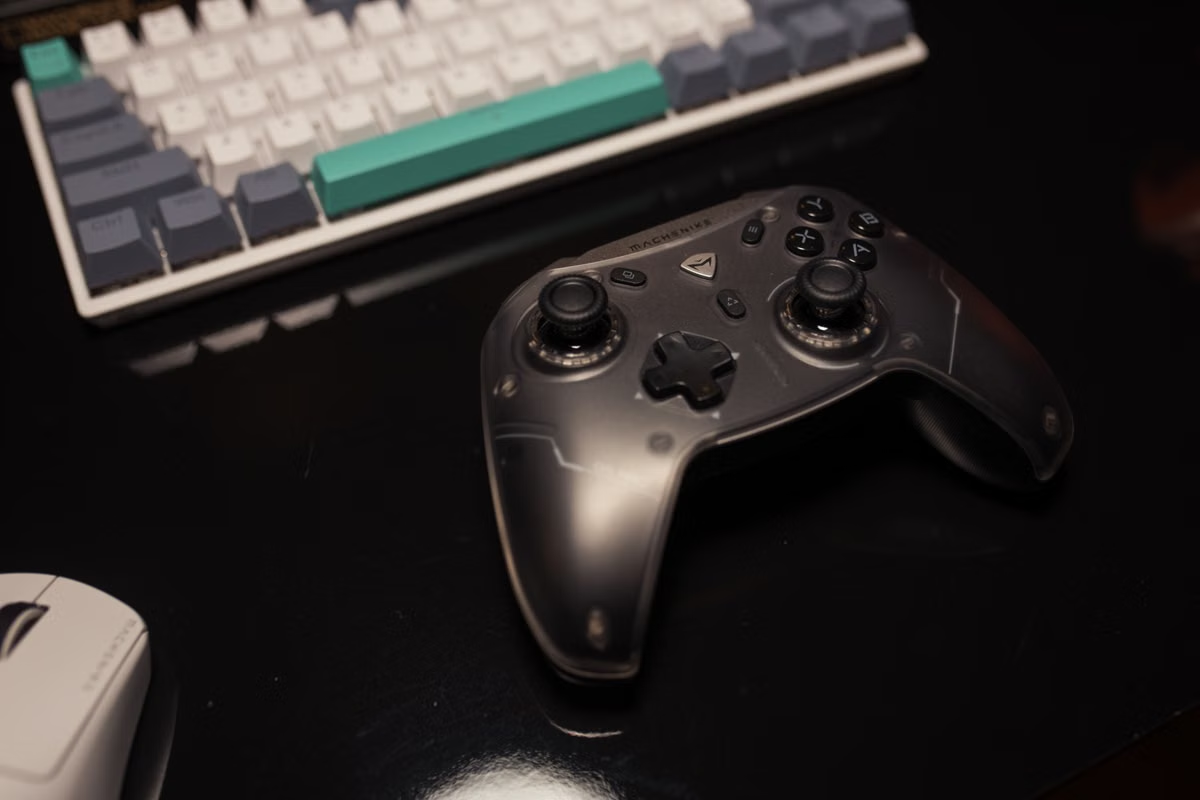
Apple’s remote-build guide describes a workflow with two machines: a Windows PC and a Mac. That means a cloud Mac workstation can help you build and debug a macOS game while keeping Windows as your main editing setup—but only if the project and Mac environment meet the documented requirements. It does not run macOS tools natively on Windows. Apple’s remote macOS game-building guide explains the supported approach.
Who this is for: Independent developers maintaining a Windows-first game and preparing a macOS build.
Small teams that want to keep editing on Windows while assigning Mac build and debug work separately.
Developers traveling without a Mac who need to check whether a remote Mac can cover a real project task.
Last updated November 1, 2026. Workflow details checked against Apple Developer documentation and the relevant Microsoft Learn guidance; recheck both before deployment because tool requirements can change.
First, check whether your project fits the remote workflow
Treat this as a project-compatibility decision before you treat it as a remote-access decision. The relevant question is not simply whether Windows can see a Mac. You need to know whether the project can build on macOS with the toolchain and configuration available there.
Apple’s remote-build guidance is aimed at supported workflows. Check your project against it before arranging a Mac:
- Build system: Is the project configured for a build path supported by Apple’s guide? If you use CMake, confirm that the project’s CMake configuration describes the macOS target and that Visual Studio can use that configuration for the remote workflow.
- Dependencies: Do required libraries and tools have macOS-compatible versions? A dependency that is only available in your Windows build environment can block the Mac build even when the connection works.
- Platform-specific code: Identify Windows-only APIs, path assumptions, custom scripts, and compiler flags. These may need alternatives or conditional handling before the project can build on macOS.
- Graphics and shaders: Check the graphics API and shader pipeline against the game’s macOS target. Apple documents a Metal shader conversion tool; its existence does not mean every shader or rendering path can be converted without project changes.
- Target support: Confirm that the project’s intended macOS deployment target and required SDKs are available in the installed Xcode environment. Apple’s Xcode system requirements list supported host operating systems for each Xcode release.
A CMake project is not automatically portable because it uses CMake. The build scripts, dependencies, and platform-specific code still determine whether the project can target macOS. Microsoft’s documentation on C++ projects and build systems is useful for understanding how project structure and build-system configuration relate; it is not a guarantee of macOS compatibility.
Decision: If the project already has a macOS-capable build path, test it remotely. If it relies on Windows-only components, price the porting work before you commit to a remote Mac workflow. If you only need to investigate compatibility, Apple’s Game Porting Toolkit information may help with evaluation, but it does not replace a real build and test on your target Mac environment.
Before connecting, verify the Mac and access requirements
A remote login proves only that you can reach an account. It does not confirm that the Mac has a compatible macOS version, the required Xcode tools, project dependencies, or permissions for your build and debug tasks. Check these separately.
Confirm the host and account
Write down the macOS and Xcode requirements for the project, then compare them with the Mac you intend to use. Use Apple’s current Xcode compatibility table rather than assuming the newest Xcode will work with every project. Check whether your build needs additional SDKs, command-line tools, signing assets, or licensed software.
Confirm that the account you will use can access the project files and run the required development tools. If your workflow needs credentials, certificates, or signing material, decide how you will store and access them securely. Do not copy secrets into a project folder simply because that folder is synchronized to the remote host.
Choose the access method for the job
Remote Login and graphical remote access serve different purposes. Apple’s Remote Login setup guide covers enabling SSH access. That can support command-line work and remote development connections when the workflow requires it. A graphical session is useful when you need to inspect a Mac application, interact with a debugger, or confirm behavior in the macOS interface.
Remote Management settings are relevant when your chosen remote-control method depends on them. Do not assume enabling SSH also enables graphical control, or that a graphical connection supplies the permissions needed for a build. Check the access method, account rights, and network path independently.
A host can accept your connection and still be unusable for the project. Before you schedule work around it, verify the actual macOS, Xcode, permissions, and build tools on that host.
For a travel setup, also test the network you expect to use. A slow or unstable connection can make interactive debugging unpleasant even if command-line builds complete. A large asset transfer, dropped session, or remote desktop delay can become a hidden cost in time. If your only access route depends on a hotel or café network, have another way to reconnect or pause safely.
Step 1: Prepare the Mac-side development environment
Start on the Mac. Follow Apple’s current remote build instructions for the relevant setup and supported tools. Avoid copying commands from an old tutorial without checking that they still match Apple’s documentation and your installed tool versions.
Use this sequence:
- Confirm the Mac’s operating system and development tools. Compare the installed macOS and Xcode versions with the project’s requirements and Apple’s compatibility table.
- Install or enable the tools required by Apple’s workflow. Use the official instructions for the current setup. Do not assume that having Xcode installed completes every remote-development prerequisite.
- Prepare the project dependencies. Check that libraries, generators, asset-processing tools, and scripts needed by the macOS target are present and usable on the Mac.
- Enable the required remote access. Turn on the access service needed for the chosen workflow, then verify that the intended account can authenticate. Apple describes SSH access in its Remote Login guide; graphical control may need separate configuration.
- Check what happens after a restart or session loss. Apple’s documented workflow may require you to log in again after a Mac restart before remote development can resume. Test this before travel instead of discovering it during a build deadline.
- Record a recovery route. Keep the host name or connection details, account recovery process, and a safe way to resume the work available outside the remote Mac.
Do not treat “the remote tool installed” as a successful setup. The useful test is whether the Windows development environment can reach the Mac, locate the project, invoke the expected build process, and return readable output.
Step 2: Connect the Windows project in Visual Studio
Open the project using the workflow supported by your Visual Studio installation and Apple’s remote-build instructions. For a CMake-based project, the CMake files and presets describe how Visual Studio should configure the project; they do not remove the need to validate the Mac-side compiler, SDK, and dependencies.
Microsoft’s guidance on CMake Presets in Visual Studio explains how presets can describe configuration choices. Check the relationship between these three pieces before you start a full build:
- Local project structure: The files and folders visible to Visual Studio must match the project layout expected by its CMake configuration.
- Remote Mac target: Confirm that Visual Studio is using the intended Mac and that the connection is authenticated with the account prepared for development.
- Build configuration: Verify that the selected preset or configuration targets macOS and does not silently reuse Windows-only compiler options or paths.
This is the point to look for path mismatches, missing files, and assumptions about where dependencies live. If you edit a preset or project file to make the remote configuration work, keep that change reviewable and reproducible. A one-off local setting that exists only on your travel laptop is a fragile build process for a team.
The search intent behind “Visual Studio remote Mac build” is often really about whether a Windows-first project can stay in Visual Studio. The practical answer is conditional: Visual Studio can participate in the documented remote workflow, but the project must be configured for a supported macOS build, and the Mac must have the necessary tools. Microsoft’s CMake documentation describes Visual Studio behavior; Apple’s guide is the authority for the Mac-side workflow.
Step 3: Run a small build, then test debugging
Do not make the first remote build a full release build. Choose a small, controlled task that exercises the connection and build path without involving the entire asset pipeline. The goal is to establish where failures occur.
Use this order:
- Check connection first. Confirm that Visual Studio reaches the expected Mac and that authentication succeeds.
- Check file availability. Verify that the remote build sees the project files and any required inputs. Missing files or stale copies point to synchronization or path issues, not necessarily compiler problems.
- Run a small build. Capture the build output and error logs. If the build fails, identify whether the first error is a connection problem, a missing tool or dependency, a configuration mismatch, or a genuine compile error.
- Fix one category at a time. Avoid changing network settings and build configuration simultaneously. That makes it harder to tell which change resolved the failure.
- Launch and debug a minimal game path. After a successful build, check that the application starts in the remote Mac environment and that the debugger can attach or provide useful diagnostics for the workflow you use.
- Test interruption recovery. Disconnect and reconnect once, then confirm that you can identify the active build state and resume without corrupting outputs.
Separate connection failures from compiler errors. If authentication fails, changing CMake files is unlikely to help. If the Mac is reachable but the compiler reports a missing SDK, investigate the host toolchain and project target. If the build completes but the game behaves differently, compare runtime assumptions, graphics features, and assets rather than treating the successful build as proof that the port is complete.
Remote debugging also has limits that a clean compile will not reveal. A Mac accessed over a network may not provide a physical controller, specialized input device, or other peripheral attached to your Windows machine. Network latency can make interactive testing harder, and a dropped connection can interrupt observation even when the process continues. Keep device-specific or latency-sensitive checks in a separate test plan.
Before you travel, rehearse the whole workflow
Use the same project branch and build steps you expect to use on the road. A test with a sample project only proves that the sample works. It does not validate your game’s dependencies, assets, signing needs, or debugging requirements.
Run this acceptance pass before leaving:
- Build the actual macOS target from the Windows editing environment.
- Save the complete build output and note the Mac environment that produced it.
- Launch the game on the Mac and test the project behavior you need to verify.
- Confirm that you can reconnect after a network interruption and recover after any required host restart or login.
- Check that the Mac has the account permissions and tools your real workflow uses.
- Identify tasks that still need a local Mac, physical peripherals, or a more reliable network.
- Keep a fallback, such as postponing device-specific tests, using an available local Mac, or assigning the task to a teammate with the required setup.
For an additional access rehearsal, compare the interface you plan to use with the noVNC access guide. For account and information-handling concerns, review data privacy details and confirm that your project’s credentials and files fit your organization’s rules.
A cloud Mac is a remote Mac environment, not a promise that every project, network, or debugging peripheral will work. Validate your actual project and the specific host conditions before you rely on it for a release or a travel deadline.
FAQ: Remote Mac builds for Windows game projects
Can I build a macOS version of a game I develop on Windows?
Yes, if your project and build system fit the remote macOS workflow Apple documents. Keep editing on Windows, connect Visual Studio to a prepared Mac, and build with the Mac-side tools. This does not run macOS or Xcode natively on Windows. Check the project’s CMake setup, dependencies, graphics features, and Mac environment before planning a release build.
Can Visual Studio connect to a remote Mac for game builds?
Visual Studio can work with supported remote Mac development workflows, but a successful connection alone does not prove that your game can compile or debug. Confirm the Mac toolchain, account permissions, remote access method, and project configuration first. Then use a small, repeatable build to test file transfer, build output, and error reporting before attempting a full game build.
What does a CMake macOS game project need before remote building?
Start with a project that uses a build flow supported by Apple’s remote-build guidance and has a CMake configuration that describes the macOS target correctly. Verify that required libraries, SDK assumptions, asset steps, and compiler options are available on the Mac. If the project depends on Windows-only tools or unsupported build scripts, estimate and test that migration before choosing a remote Mac.
Can a cloud Mac debug a game project developed on Windows?
It can support debugging when the project, Mac toolchain, remote connection, and required runtime conditions all work together. Test the actual game on the remote Mac, not just a successful compile. Remote access may not expose a physical controller, specialized device, or other peripheral you use locally, and network interruptions can affect interactive debugging. Keep a local or on-site fallback for those cases.
If your current setup is Windows-only, you may have to postpone macOS builds, maintain a separate Mac workflow, or carry a Mac while traveling. A remote Mac can reduce that equipment burden, but it adds dependencies on host compatibility, account access, and network quality. After your end-to-end test passes, compare your project’s requirements with the actual system conditions, access methods, and rental periods listed in macworker rental plans. If your project needs unsupported peripherals or sustained local testing, a physical Mac may still be the better fit.
Frequently asked questions
Can I build a macOS version of a game I develop on Windows?
Yes, if your project and build system fit the remote macOS workflow Apple documents. Keep editing on Windows, connect Visual Studio to a prepared Mac, and build with the Mac-side tools. This does not run macOS or Xcode natively on Windows. Check the project’s CMake setup, dependencies, graphics features, and Mac environment before planning a release build.
Can Visual Studio connect to a remote Mac for game builds?
Visual Studio can work with supported remote Mac development workflows, but a successful connection alone does not prove that your game can compile or debug. Confirm the Mac toolchain, account permissions, remote access method, and project configuration first. Then use a small, repeatable build to test file transfer, build output, and error reporting before attempting a full game build.
What does a CMake macOS game project need before remote building?
Start with a project that uses a build flow supported by Apple’s remote-build guidance and has a CMake configuration that describes the macOS target correctly. Verify that required libraries, SDK assumptions, asset steps, and compiler options are available on the Mac. If the project depends on Windows-only tools or unsupported build scripts, estimate and test that migration before choosing a remote Mac.
Can a cloud Mac debug a game project developed on Windows?
It can support debugging when the project, Mac toolchain, remote connection, and required runtime conditions all work together. Test the actual game on the remote Mac, not just a successful compile. Remote access may not expose a physical controller, specialized device, or other peripheral you use locally, and network interruptions can affect interactive debugging. Keep a local or on-site fallback for those cases.
Build and Debug macOS Games on a Dedicated Cloud Mac
Keep Windows as your main editing environment and use a MacWorker node for supported macOS builds and debugging.