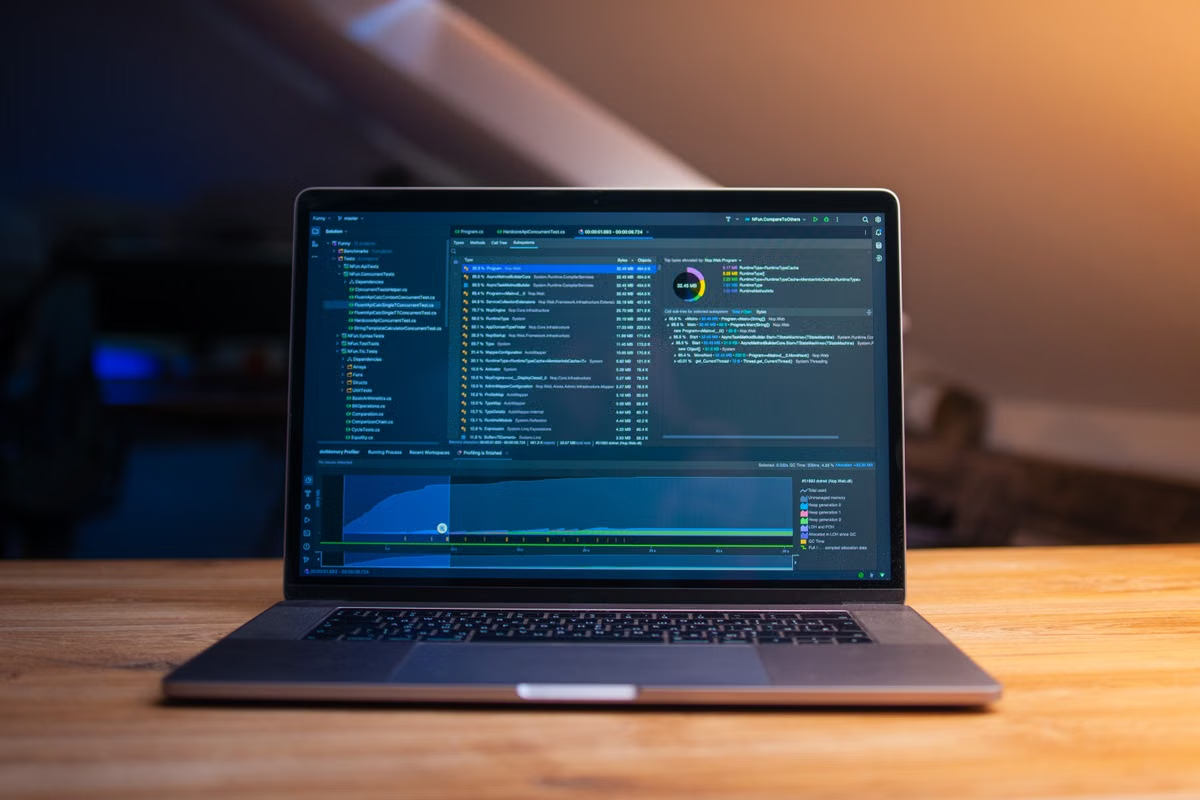
Symptom: CPU stays high on a remote Mac while Claude Code is running or after a session ends.
Fastest safe response: use Activity Monitor to identify the active process and its parent, match it to current work, then wait, stop a confirmed task, or investigate its launch source. Do not delete an unknown process.
This guide is for independent developers who need to separate agent activity from builds and other processes.
It also helps engineers tracing jobs that outlive a terminal session, and small teams that need a safe investigation process.
Last updated October 26, 2026. The troubleshooting steps were checked against Apple's Activity Monitor guide, Apple's process hierarchy documentation, and Anthropic's Claude Code CLI documentation. A media report about one developer's experience is discussed only as an individual account, not as evidence of a general Claude Code problem.
Claude Code remote Mac CPU spike: identify the workload first
A high CPU reading tells you that processes are using processor time. By itself, it does not tell you whether Claude Code, a compiler, a test runner, or an unrelated background job is responsible. Apple documents Activity Monitor as a way to view CPU activity and inspect processes; use it to establish what is active before changing anything.
Open Activity Monitor on the remote Mac and choose its CPU view. Sort the process list by CPU activity, then note the process names that are actually consuming resources. Open the process information or hierarchy view to check whether a process is related to another process. Apple documents both CPU activity views and process inspection in its Activity Monitor user guide and process hierarchy guide.
Treat this as a correlation check, not a naming check. A process name that looks like a development tool is not proof that Claude Code started it. Look for a plausible parent-child relationship, a matching task, and a change in activity when that task completes.
For a remote session, keep the observation tied to the same time window as your work. Record what Claude Code was asked to do, whether a build or test was running, and which processes appeared alongside it. If you manage the Mac through a browser console or remote desktop, macworker's browser-based Mac access can help you reach the desktop interface when you need to inspect Activity Monitor.
Scenario: Claude Code is working through a build or test
When Claude Code is actively analyzing code, calling a build tool, or running tests, elevated CPU can be consistent with the work in progress. The key question is whether the processes you see correspond to the task you requested and whether activity changes when the work ends.
Check the current task before stopping anything:
- Is a compiler, test runner, indexer, or other tool visibly active?
- Did Claude Code start a command or tool that would reasonably perform compute-heavy work?
- Do the process relationships and timing fit the task?
- Does the activity change after the task completes or is deliberately paused?
Anthropic's Claude Code CLI documentation describes the command-line tool and its options. Use that documentation to understand the CLI behavior you configured, but do not infer process ownership from the fact that Claude Code is open. A separate child process can continue doing work, and a similarly named process can have another origin.
Scenario example: You ask Claude Code to run a test suite. Activity Monitor shows a test process and a compiler active while the job is running. That is evidence consistent with the requested task, not evidence of a fault. Let the task finish or stop it through the appropriate tool, then check whether the related activity subsides. If the processes remain active after the job reports completion, investigate their relationships and launch source rather than assuming the agent is stuck.
When the work is still progressing and the observed processes match the request, waiting is usually safer than force-quitting them. If the task has stalled, first use the task's own cancellation method when available. Apple explains the available process-exit options in its guide to quitting processes in Activity Monitor. Force-quit only after you have confirmed the process identity and considered whether it could be writing build artifacts, changing files, or serving another user.
Scenario: parallel agents, builds, and tests overlap
Several legitimate jobs can be active at once. If you launch parallel work, run a build while tests execute, or leave another developer tool open, the combined CPU activity may look like one oversized Claude Code task even though several processes contribute.
Inspect the leading processes separately. Distinguish the agent interface from compilers, test workers, language servers, and other development tools. Then pause or allow one known task to finish and observe whether its associated activity changes. This gives you a more useful comparison than attributing the entire total to whichever application name is most familiar.
Avoid using an assumed CPU percentage as a universal fault threshold. The evidence you need is task-specific: which processes are active, what started them, whether they are making progress, and whether activity persists after the related work should have ended. A fixed threshold without context cannot distinguish a legitimate build from an orphaned job.
If your remote Mac is also used by teammates or automation, check ownership before stopping anything. A test process may belong to another session; a build may be part of a shared release task. Preserve process details and coordinate with the owner before interrupting work you did not start.
Scenario: the terminal session ends, but CPU activity continues
Closing a remote terminal does not establish that every command launched from it has stopped. A build, script, test runner, or automation task may continue independently. First determine whether the process is still doing expected work or has become an unwanted leftover.
In Activity Monitor, record the process name and inspect its parent or related processes. Compare that information with the task you ran and the time your session ended. If the process has a clear connection to a build that is still completing, wait or check its status through the relevant tool. If the task is complete and the process remains, confirm that it is safe to stop before using Activity Monitor's process controls.
Do not remove a file or terminate a process just because you do not recognize its name. A process may belong to macOS, a team service, or an automation workflow. Apple documents how to inspect and quit processes, but the decision to stop a particular job still depends on its identity and purpose.
Scenario example: A developer disconnects after starting a test command. Later, Activity Monitor still shows a test-related process. The right next step is to check whether that test is still progressing and whether the process relationship matches the earlier task. If the task is complete, check with the owner or inspect the launch source before stopping it. If the process is unrelated, keep the observation and investigate separately.
If you often disconnect while work is running, review remote Mac SSH access and session management considerations alongside your team's access and data-handling rules. A reliable remote workflow depends on knowing which work is expected to persist and who is authorized to stop it.
Scenario: the same high load returns after restart
If high CPU activity returns after a restart, look for a legitimate mechanism that starts work again. Login items, background activity, and automation may relaunch an app or task after a user signs in. Apple's guides explain how to manage items that open automatically at login, background tasks, and the system's service management framework.
Review authorized startup and automation sources before treating a recurring process as suspicious. Check whether the entry belongs to a tool you installed, a team-managed service, or a scheduled workflow. If the source is unclear, preserve the process details and any relevant alerts, then follow your organization's security process for isolation, scanning, and review. Avoid changing system-managed entries until you know what they do.
A report published in October 2026 described one developer's claim that Claude Code helped identify a crypto-mining process on that developer's Mac. The report is an individual account; it does not establish that Claude Code generally causes high CPU, and it is not independent technical verification of that case. Use the report as context only. Diagnose your own Mac from process evidence and reproducible observations, not from the headline.
Choose the next action from the evidence
Use these branches after inspecting the process list and checking the task:
- If the active processes match a build, test, or analysis that is still running, then let it finish or cancel it through its normal control. Recheck CPU activity afterward.
- If multiple known tasks are running, then observe or pause tasks individually and identify which activity changes. Avoid stopping work you do not own.
- If the terminal session ended but a related task is still progressing, then verify its status and let it complete unless there is a clear reason to stop it.
- If a process remains after its task should be complete, then identify its parent and launch source before choosing a safe stop action.
- If the same unexplained process returns after restart, then review authorized login items and background automation, preserve evidence, and follow your security review process.
- If you cannot establish what a process does, then do not delete it or force-quit it solely because its name is unfamiliar. Escalate with the recorded details.
This decision path separates expected workload from a process that needs investigation. It also avoids treating a high reading as a diagnosis on its own.
FAQ: common checks during a remote investigation
How do you check CPU while Claude Code is running?
Open Activity Monitor, sort by CPU activity, and compare the leading processes with the task in progress. Inspect process relationships before deciding what launched each process. If the task is a build or test, check again when it completes. A process name by itself is not enough to attribute activity to Claude Code.
What if a process stays active after you close the remote terminal?
Check whether a build, script, test, or automation job was started in a way that lets it continue after the terminal closes. Note the process identity and parent relationship, then confirm whether the task is still needed. Stop only a process you have identified and are authorized to stop; leave unknown or shared work alone until it is reviewed.
How can you distinguish a build from an unrelated background process?
Match the process to a specific task using its relationship to other processes, its timing, and its activity before and after the task finishes. Compare those observations with the command or tool you used. If the evidence does not establish a connection, preserve the details and investigate the launch source rather than guessing from a familiar-looking name.
What should you review if high CPU comes back after restarting the Mac?
Check authorized login items, background activity, and automation that may resume after sign-in. Apple provides documentation for these system features. If you cannot identify a recurring entry, retain process and alert information and follow your team's security procedure. A media report about one developer is not a diagnosis of your own system.
Record the result and verify it on real work
Use a short incident record so another engineer can repeat your investigation. Keep it factual:
- Situation: What were you doing when the high CPU activity appeared?
- Task: Was Claude Code analyzing code, running a command, or waiting?
- Process evidence: Which processes were active, and what relationships did Activity Monitor show?
- Action: Did you wait, cancel a task, stop a confirmed process, or escalate for review?
- Verification: What changed after the action, and did the activity match the work that remained?
- Follow-up: Did the process return after a new task or restart?
Re-test with a representative project task, not an idle desktop alone. Confirm that the process activity fits what you asked the Mac to do, and check again after the task ends. If unexplained activity persists, continue the investigation rather than declaring the issue resolved because the interface looks quiet once.
Keep permissions narrow while investigating. Use the access needed to inspect the process and its task; do not switch to elevated privileges or alter shared system services without a clear operational reason and authorization. For ongoing remote work, review your team's remote access and privacy expectations before changing access or background-task policy.
| Evidence you observe | Safer next step | Avoid |
|---|---|---|
| Processes match active analysis, build, or tests | Let the task finish or cancel it through its normal control, then recheck | Assuming Claude Code itself is faulty |
| Several known development tasks overlap | Observe or pause tasks individually and identify which activity changes | Assigning the combined load to one application |
| A related process remains after the session ends | Check task status, parent relationship, and ownership before stopping it | Force-quitting an unidentified or shared process |
| The same unexplained activity returns after restart | Review authorized startup sources and follow security review procedures | Deleting files based on a process name or media story |
If you need a Mac that stays online for development or build work, compare that need with the trade-offs of your current setup. A local machine can tie up your workstation and depends on its power and network; a general-purpose server may not provide the macOS tools your workflow requires; unmanaged background jobs can also make ownership and cleanup harder to verify. For work that benefits from a dedicated macOS environment without buying another machine, you can review macworker's remote Mac rental plans. Renting is not the best fit for every case: a long-running, predictable workload may justify owning hardware, and tasks that need a physical device or local peripherals should stay on an appropriately equipped Mac.
Frequently asked questions
How can I check high CPU use while Claude Code is running on a remote Mac?
Open Activity Monitor and sort the process list by CPU activity. Compare the leading processes with the task Claude Code is performing, then inspect process relationships before assigning cause. If a build or test is active, observe whether its load changes when that work finishes. Process names alone do not prove that Claude Code launched a process.
What should I do if a process keeps running after I close my remote terminal?
First check whether the process belongs to a build, test, script, or automation task that was started separately from the terminal session. Record its identity and parent relationship, then confirm the task is no longer needed with its owner. Stop only a confirmed, safe-to-stop task; do not force-quit an unknown or shared process.
How do I tell a build process from an unrelated background process?
Match the process to evidence, not just a familiar-looking name. Check its parent and related processes in Activity Monitor, compare its start and activity with your build or test, and observe whether it exits or quiets down when that work completes. If the connection remains unclear, preserve the details and investigate the launch source before taking action.
What should I investigate when high CPU returns after a Mac restart?
Review authorized login items, background activity, and scheduled automation that may resume after login or startup. Apple documents how to manage login items and system-managed background tasks. If you cannot identify an entry, retain relevant process details and follow your team's security review process instead of treating a single media report as proof of infection.
Run Your Workload on a Dedicated Mac
Choose a dedicated physical Mac from macworker with fixed Apple silicon, memory, and SSD configurations.